
How to search text in screenshots on iPhone
If you remember a word from a screenshot, try searching for it in Apple Photos. To search within a library of screenshots in KeepSift, let the app scan the screenshots it can access, then type the word you remember.
1. Give KeepSift access to the screenshots you want to search
Open KeepSift and tap Allow photo access. If you grant access to selected photos, include the screenshots you want to find. Let the scan finish. If scanning on open is off, go toLibrary and tap Scan now.
2. Search for a word you remember
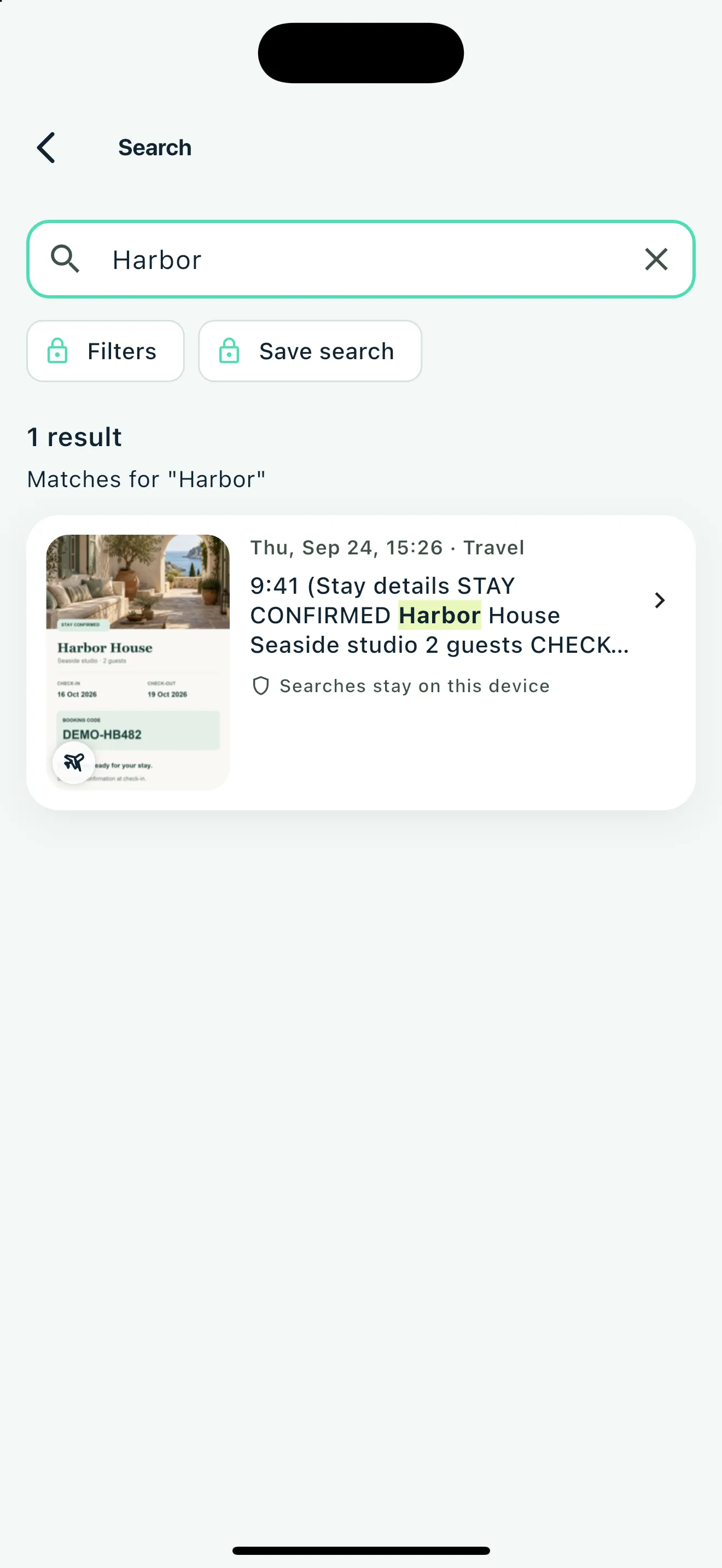
In Library, tap Search screenshots and enter a word from the image. In this example, searching for “Harbor” finds a fictional hotel confirmation.
3. Open the matching screenshot
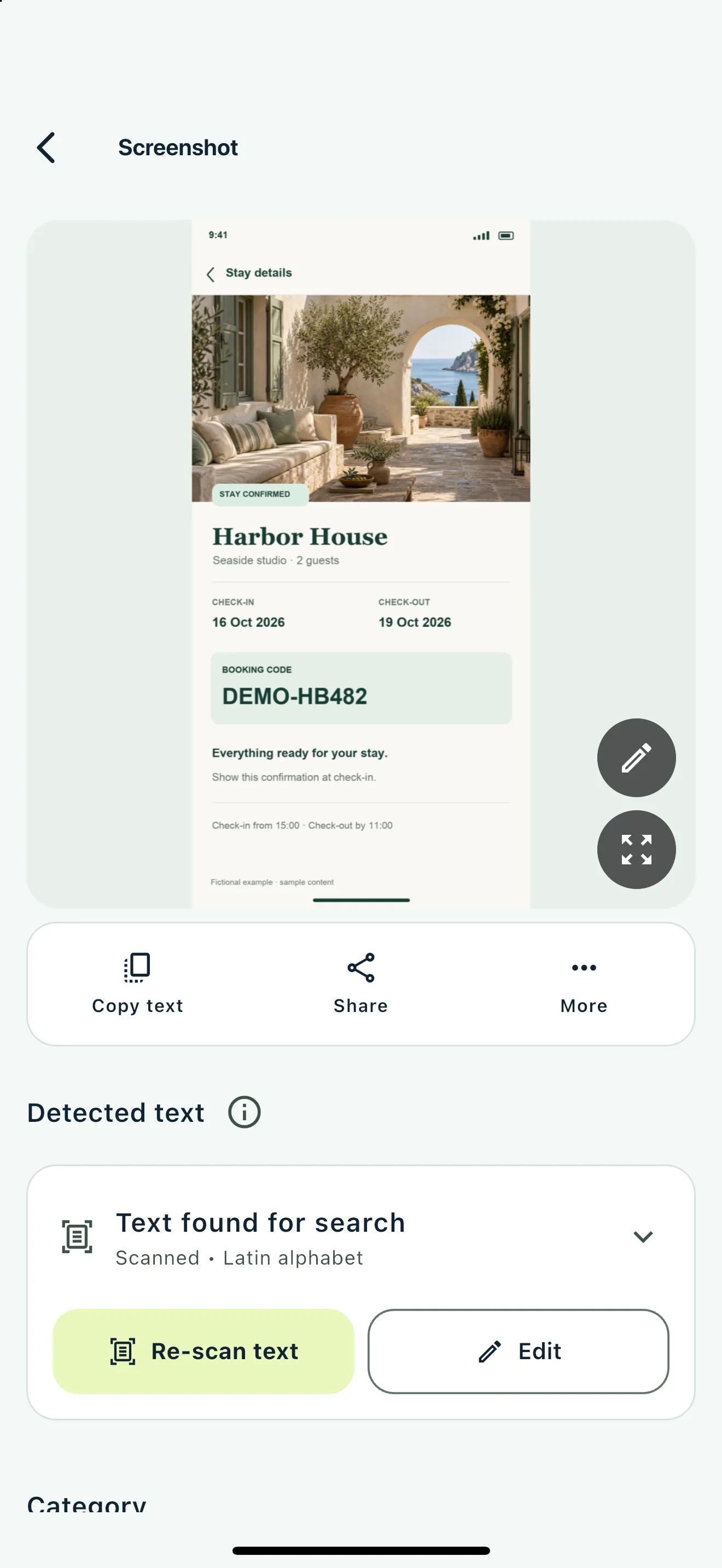
Tap the result to check the original image. Use Copy textto copy the recognized text. Check details such as booking codes against the original image before using them.
What if a screenshot does not appear?
Check that KeepSift can access the screenshot and that the scan has finished. If you granted access to selected photos, add the missing screenshot to that selection. Try another word from the image if the first search comes back empty.